How-to guides · Make it yours
Change your look and bin effects
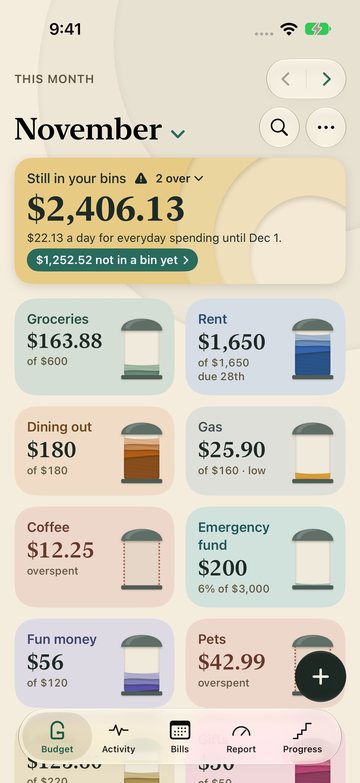
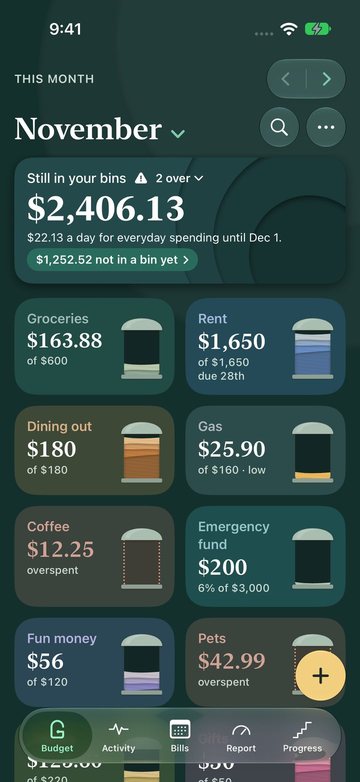
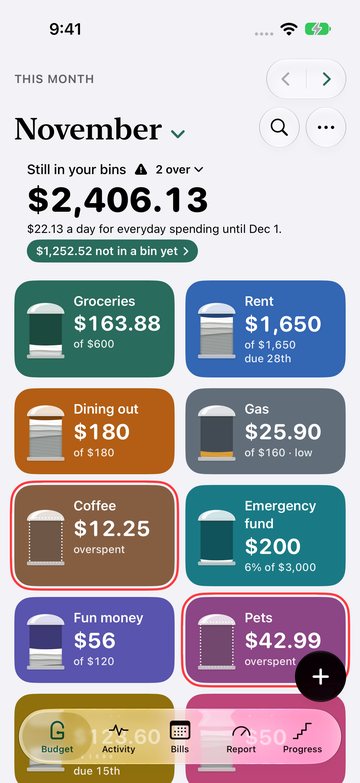
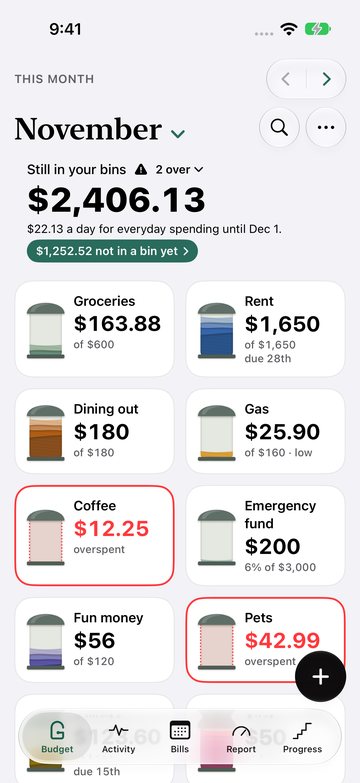
The look sets the paper your bins sit on, and the bin effects set how each bin is drawn. Each person and device keeps their own, so partners can pick differently.
Open Appearance
Tap the More menu (…) at the top of Budget, then Settings, then Appearance. Here you can also switch between the Bins and Ledger views.
Pick a look
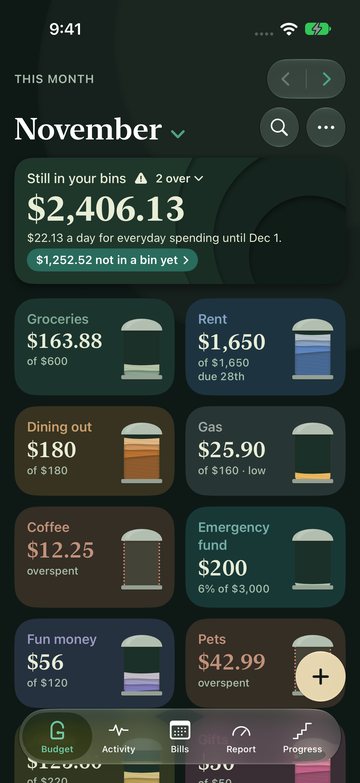
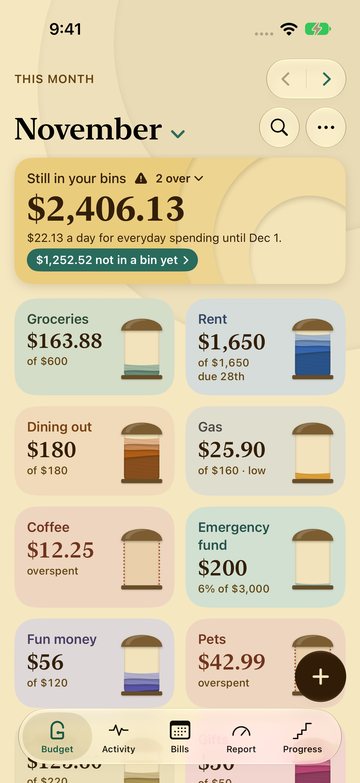
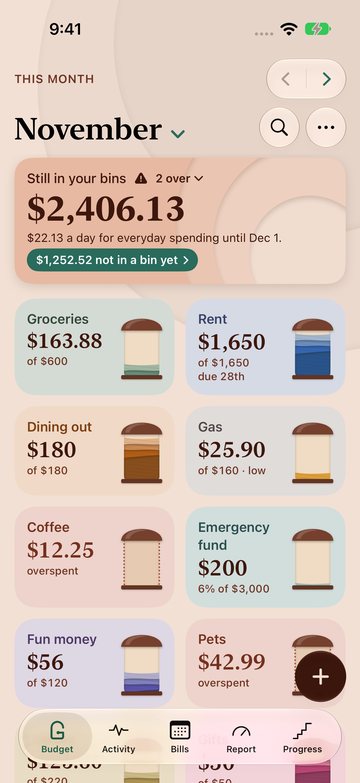
Under Look, tap a card. Daylight, Dusk, Bold and System are free; System follows your device's light or dark mode. Night, Harvest and Clay Plus set the paper in deep green, wheat gold or terracotta, and each sets a matching Home Screen icon.
Set the bin effects
Under Bin effects are two switches: Glass, the soft shadows that give each bin its depth; and Fill animation, the fill rising or dropping to a new amount.
Back to your bins
Tap back, then Done. Budget is in the new look.
On a Mac: Granary › Settings… (⌘,) › General has the look and the bin effects. The Mac offers Daylight, Dusk, System, Night, Harvest and Clay (Bold is iPhone and iPad only), and its app icon stays the same.
Accessibility settings come first. With Reduce Transparency or Increase Contrast on, Glass is off, whatever its switch says, so the bins stay crisp. iOS shows a short message when a look changes the app icon.
See them side by side
Related
- Set up your budget, where you can pick a look first
- Looks and app icons in Help


